
Adding signals to a Portfolio
Option 1: Adding signals directly from your portfolio page
Go into a portfolio and select the “Add Signals” button (highlighted in yellow).

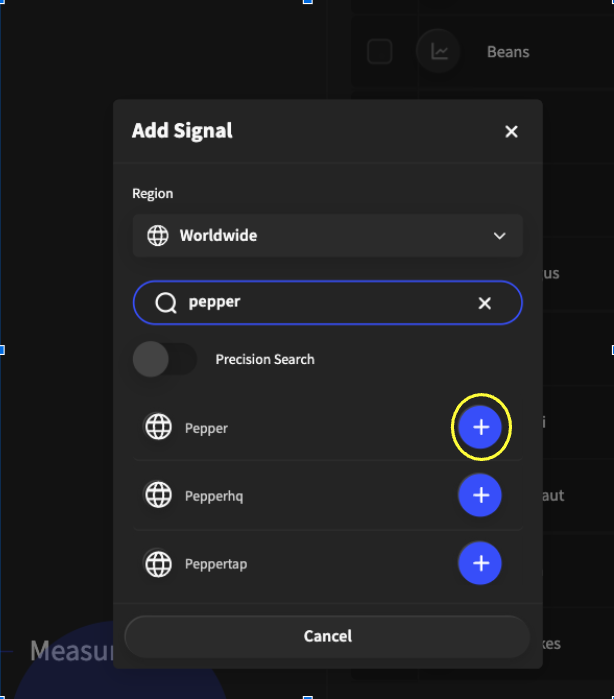
Once you click this button, a search bar (highlighted in yellow) will appear where you can search for a signal. The globe icon (highlighted in yellow) will allow you to change the market of a signal.
Once you have found your chosen signal, you can add it by pressing the “+” button (highlighted in yellow).

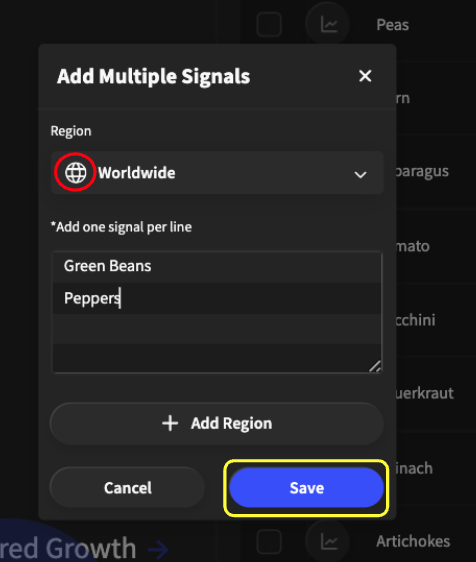
Alternatively, if you would like to add more than one signal at a time to your portfolio, you can select “Add Multiple.”

You will be able to add signals line by line and when you are finished, click the “Save” button (highlighted in yellow). The globe icon (highlighted in red) will allow you to change the market of the signals.
Option 2: Directly from the signal report page
After your signal has finished loading, you will find a “+” icon (highlighted in yellow) at the top left-hand corner of the screen.
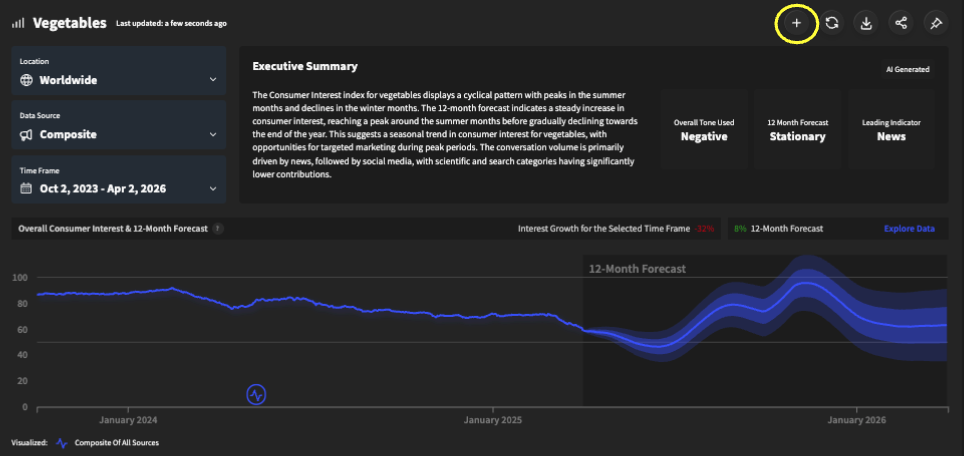
Once you have pressed this button, you can add it to any of your portfolios by pressing the white check box (highlighted in yellow).
